
You can add a new job to your job architecture at any time, for example when hiring for a new job in your organisation.
Solution overview
To add a new job, go to the Overview or Job Catalogue tabs, click New Job, then complete the job profile details.
Step 1: Add a new job
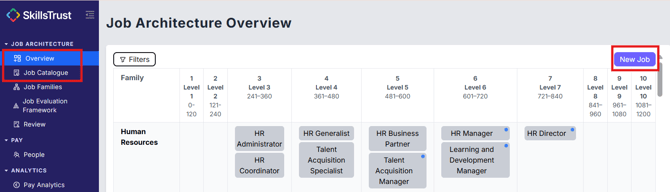
- Select either Overview or Job Catalogue under the Job Architecture section from the left-hand menu.
- Click New Job in the top right corner.
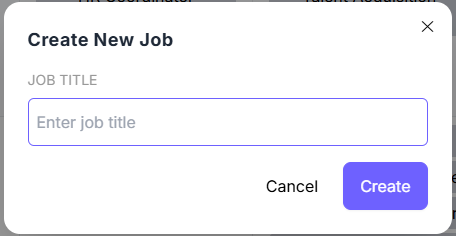
- Type the job title into the pop-up and click Create.
Step 2: Edit the new job
- Creating a new job automatically opens its profile page.
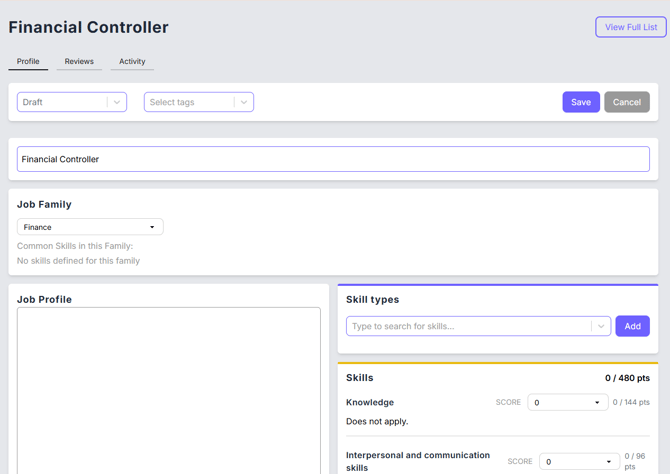
- You can now populate the profile:
- Update the Status to Draft, Review Requested or Validated.
- Add Tags.
- Choose a Job Family from the dropdown list.
- Update the Job Title.
- Add a Job Profile.
- Add Skill types from the dropdown list.
- Assign scores for all job evaluation subfactors.
- When you are done, click Save in the top right to save your changes and leave edit mode.
.png?width=670&height=125&name=save%20job%20profile%20(cropped).png)
- Once you leave the edit mode, you can generate a job profile by clicking Generate with AI in the Job Profile card.
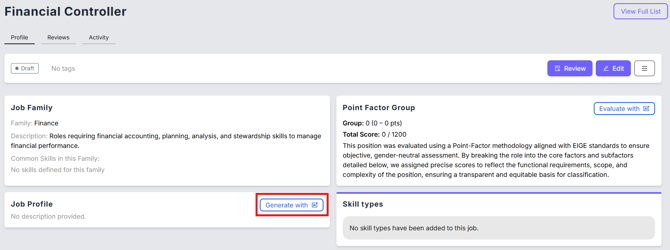
- You can also assign the factor scores automatically to a job profile by clicking Evaluate with AI on the Point Factor Group card.
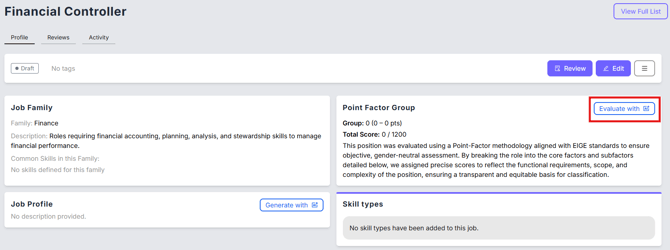
- To edit the generated profile and the auto scores, click Edit in the top right corner of the page.
.png?width=670&height=86&name=edit%20job%20profile%20(cropped).png)
- Your job now appears in the Overview and Job Catalogue tabs, alongside your other jobs.
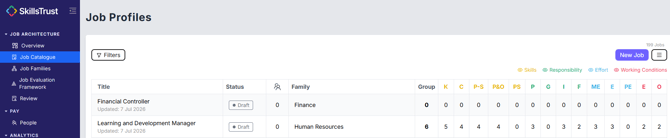
Note: a job with no scores appears only in the Job Catalogue tab. It appears in both tabs once its total score is above 0.
Still need help?
If this article did not answer your question, email our support team at support@skillstrust.org and we will be happy to help.
Our support hours are Monday to Friday, 9am to 5:30pm GMT, excluding public holidays in the Republic of Ireland.