
You can add a review to record whether you agree with a job's evaluation, for example as
part of the calibration process when the job is being reviewed.
Solution overview
To add a review, open the job profile, click Review, choose Agree or Disagree, add a
comment, then submit.
- Select either Overview or Job Catalogue under the Job Architecture section from the left-hand menu.

- Click on the job to open its job profile.
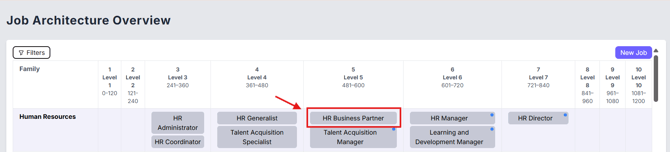
- Click Review in the top right corner. A Please Provide Review panel opens.


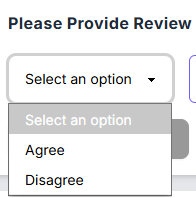
- Open the Select an option drop-down and choose:
- Agree: you agree with the job evaluation.
- Disagree: you do not agree with the job evaluation.
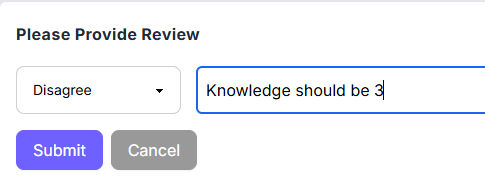
- Add a comment in the Add a comment field to explain your feedback.
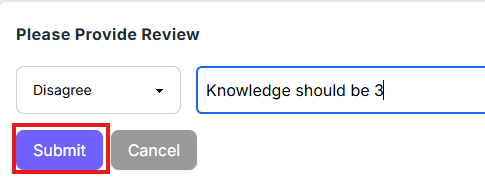
- Click Submit.
- Your review is saved and appears on the Reviews tab and on the Job Profile page.
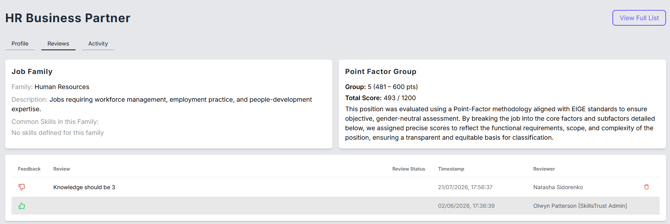

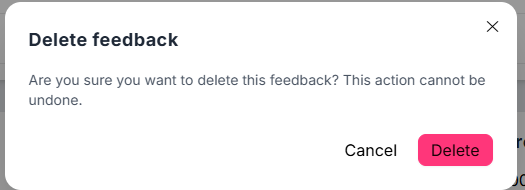
- You can delete your review by clicking the Bin icon on the right side of the Your Review panel, and then clicking on Delete in the pop-up window. You can only delete your own reviews.

Note: You can see all reviews in the Reviews tab, but only your reviews will be shown on the Job Profile.
Still need help?
If this article did not answer your question, email our support team at support@skillstrust.org and we will be happy to help.
Our support hours are Monday to Friday, 9am to 5:30pm GMT, excluding public holidays in the Republic of Ireland.