
You can add tags to a job to label and organise it, for example to mark how its description was created or to flag a duplicate.
Solution overview
To add a tag, open the job profile, click Edit, choose one or more tags from the Select tags drop-down, then click Save.
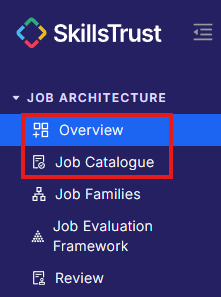
- Select either Overview or Job Catalogue under the Job Architecture section from the left-hand menu.
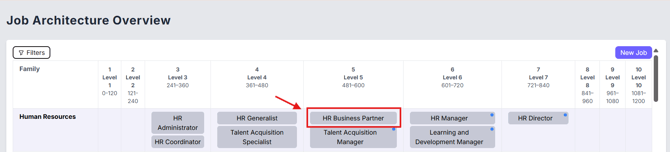
- Click on the job to open its job profile.
- Click Edit in the top right corner.

- Open the Select tags drop-down at the top of the edit panel and choose one or more tags.

- To remove a tag, open the drop-down again and deselect it.
- Click Save in the top right to apply the change and leave edit mode. Your tag(s) appear at the top of the job profile next to the status.


Still need help?
If this article did not answer your question, email our support team at support@skillstrust.org and we will be happy to help.
Our support hours are Monday to Friday, 9am to 5:30pm GMT, excluding public holidays in the Republic of Ireland.