
You can change the status of several jobs at once, for example when you are organising your job architecture for review.
Solution overview
To change the status of several jobs, go to the Job Catalogue tab, enable bulk edits, select the jobs, then choose Change Status from the Actions menu.
Step 1: Enable bulk edits
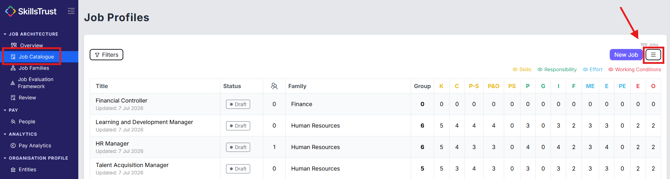
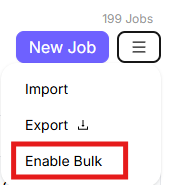
- On the Job Profiles page, find the menu icon (the 3 lines) in the top right, next to the New Job button. Click it to open the options: Import, Export and Enable Bulk.

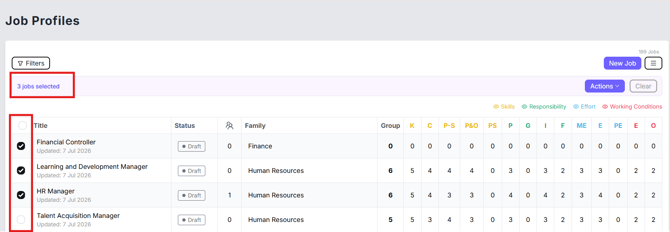
- Select Enable Bulk. This adds a checkbox to the left of each job.
Step 2: Select jobs and change the status
- Tick the checkbox next to each job you want to change. You can select as many as you need. A count appears at the top left, for example "3 jobs selected".
- Click the Actions button at the top right.
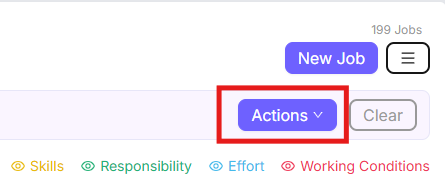
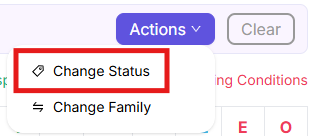
Two options appear:- Change Status: updates the status for all selected jobs.
- Change Family: moves all selected jobs to a different job family.
- Select Change Status.
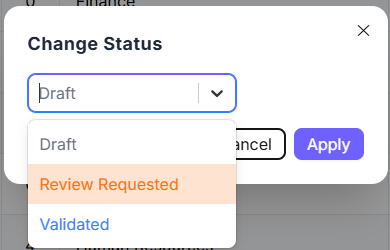
- Choose the status you want to assign from the drop-down menu, then select Apply.
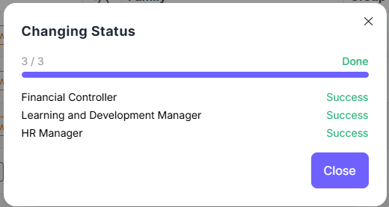
- A Changing Status dialog shows the progress and confirms each job has been updated. When it reads Done and every job shows Success, click Close.
Step 3: Clear the selection & disable bulk edit mode
-
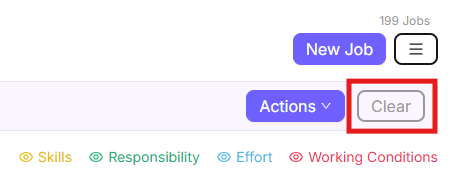
To start over, click Clear (top right of the table) to deselect everything.
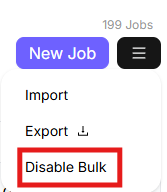
- While bulk mode is on, open the menu and select Disable Bulk to turn bulk mode off.
Still need help?
If this article did not answer your question, email our support team at support@skillstrust.org and we will be happy to help.
Our support hours are Monday to Friday, 9am to 5:30pm GMT, excluding public holidays in the Republic of Ireland.