
You can change the status of a job to show where it is in the evaluation process, for example when you are ready to send a job for review or to confirm it is validated.
Solution overview
To change the status of a single job, open the job profile, click Edit, then choose the new
status from the Status drop-down and save.
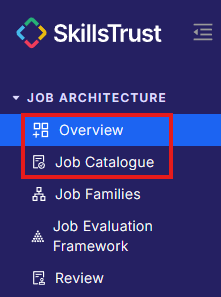
- Select either Overview or Job Catalogue under the Job Architecture section from the left-hand menu.
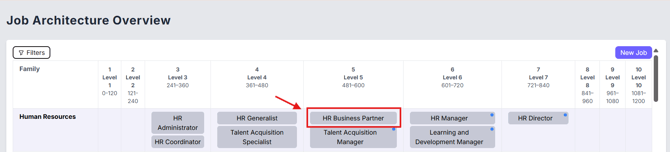
- Click on the job to open its job profile.
- Click Edit in the top right corner.

- Open the Status drop-down in the top left and choose one of:

- Draft: the job is still being worked on.
- Review Requested: the job is ready for someone to review.
- Validated: the job has been confirmed as complete.
- Click Save in the top right to apply the change and leave edit mode.

Note: to change the status of several jobs at once, see How to change the status of a list of jobs.
Still need help?
If this article did not answer your question, email our support team at support@skillstrust.org and we will be happy to help.
Our support hours are Monday to Friday, 9am to 5:30pm GMT, excluding public holidays in the Republic of Ireland.