
You can filter jobs to narrow down what you see, for example to find all jobs with a certain
status, family or tag. Filters are available on the Overview, Job Catalogue and Review tabs.
Solution overview
To filter jobs, go to the Overview, Job Catalogue or Review tab, click Filters, then set one or more of the filters shown. The filters available depend on the tab you are on.
Step 1: Open the filters
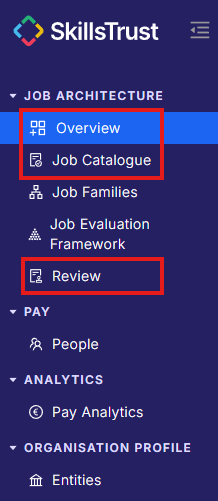
- Select Overview, Job Catalogue or Review under the Job Architecture section from the left-hand menu.
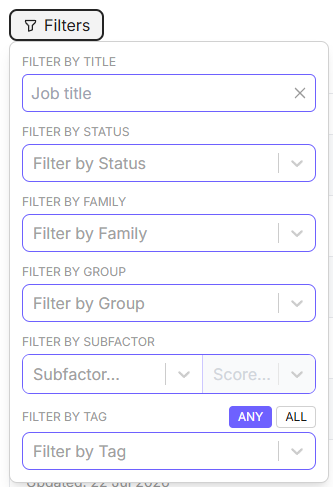
- Click the Filters button at the top left of the page. A panel opens with the filters available on that tab.

Step 2: Set and clear filters
The filters you see depend on the tab. Use the table below to check what is available where:
|
Filter |
Overview |
Job Catalogue |
Review |
|
Title |
✅ |
✅ |
✅ |
|
Status |
✅ |
✅ |
❌ |
|
Family |
✅ |
✅ |
✅ |
|
Tag (with ANY / ALL toggle) |
✅ |
✅ |
✅ |
|
Group |
❌ |
✅ |
✅ |
|
Subfactor (with Score) |
❌ |
✅ |
✅ |
-
Set any of the following:
- Title: type a job title into the Filter by Title box.
- Status: choose Draft, Review Requested or Validated.
- Family: choose a job family.
- Tag: choose one or more tags. Use the ANY / ALL toggle to decide whether jobs must match any of the selected tags or all of them.
- Group: filter by job level (group).
- Subfactor: choose a subfactor, then set a Score to find jobs scored at that level for that subfactor.
- Apply several filters at once to narrow your results further.
- To clear the filters, click the x next to the Filters button, or open Filters and click Reset filters at the bottom of the menu.
Still need help?
If this article did not answer your question, email our support team at support@skillstrust.org and we will be happy to help.
Our support hours are Monday to Friday, 9am to 5:30pm GMT, excluding public holidays in the Republic of Ireland.