
We recommend setting up multi-factor authentication (MFA) to add an extra layer of security to your SkillsTrust account and prevent unauthorised access to your company's data.
Solution overview
Sign in at platform.ja.skillstrust.org, then enable MFA from the Security tab in your account settings using an authenticator app.
Step 1: Log in to the platform
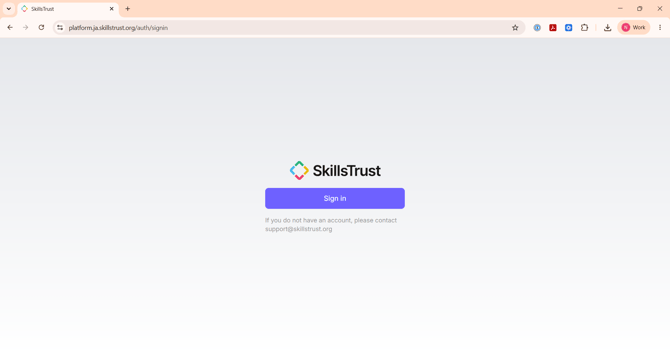
- Go to platform.ja.skillstrust.org and click Sign in.
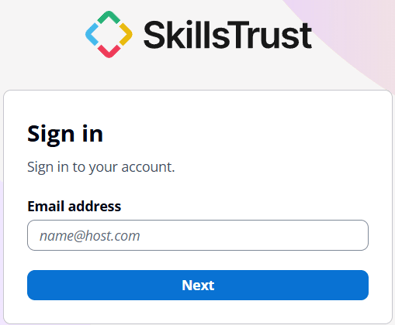
- Enter your email address and click Next.
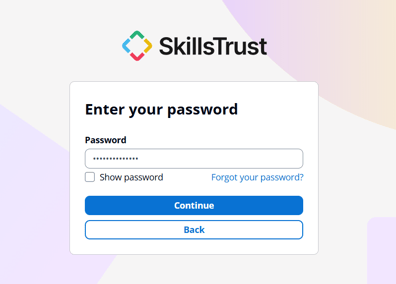
- Enter your password and click Continue.
Step 2: Turn on multi-factor authentication (MFA)
MFA is not on by default, so you need to set it up. You need an authenticator app such as Google Authenticator, Authy or 1Password on your phone.
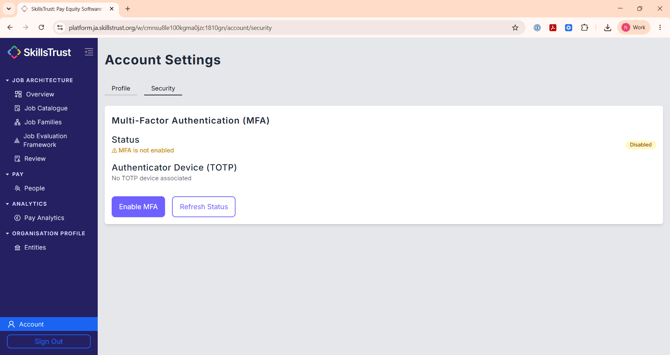
- Click Account at the bottom left, then open the Security tab. Under Multi-Factor Authentication (MFA), click Enable MFA.
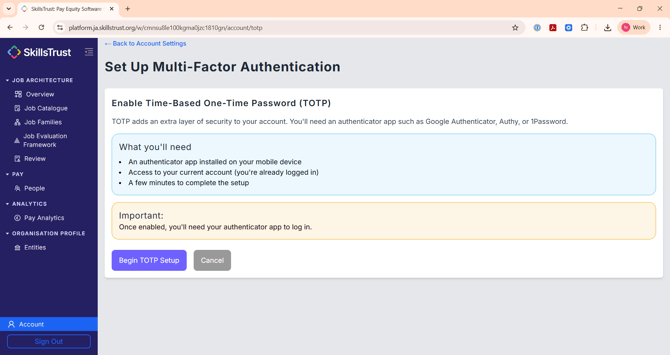
- Click Begin TOTP Setup.
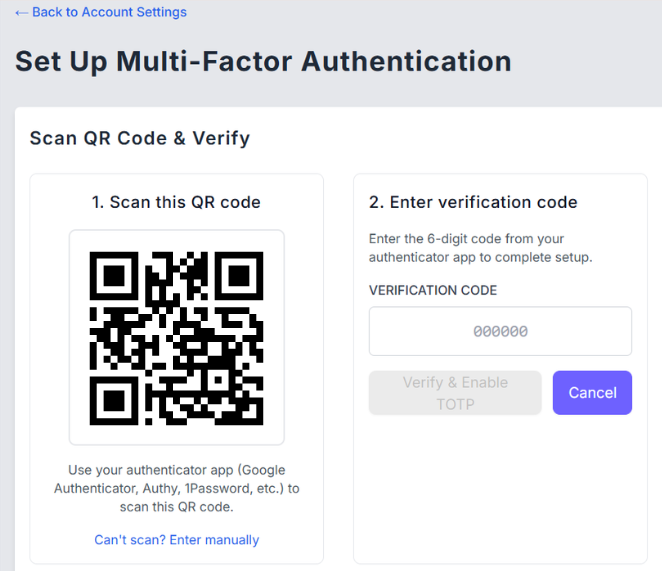
- Open your authenticator app and scan the QR code on screen.
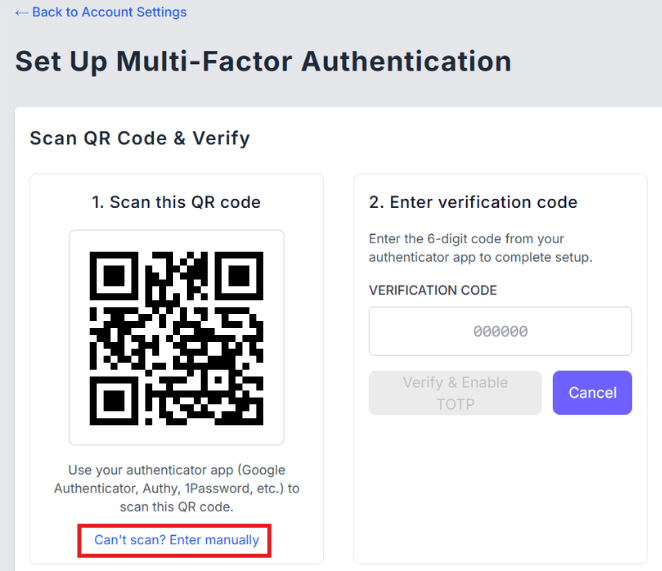
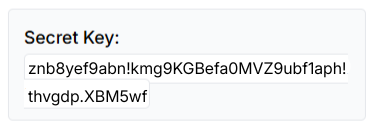
- If you cannot scan it, click Can't scan? Enter manually and use a unique secret key shown instead.
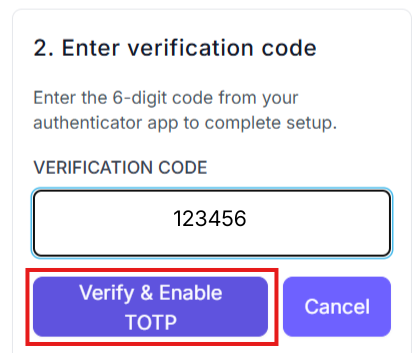
- Enter the 6-digit code from your authenticator app in the Verification code field, then click Verify & Enable TOTP.
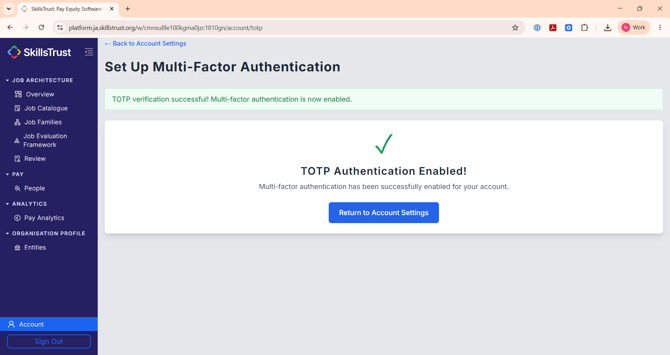
- When you see the confirmation, click Return to Account Settings.
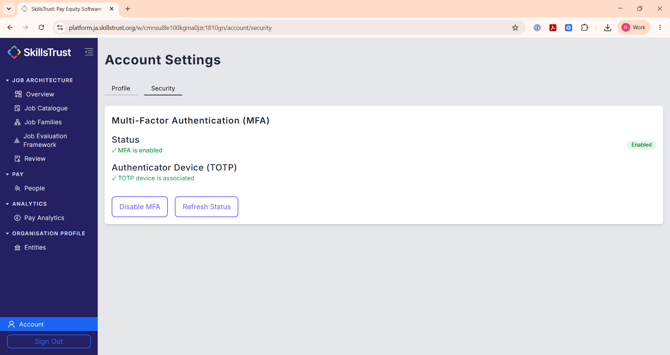
- The Security tab now shows MFA is enabled. From now on you enter a code from your authenticator app each time you log in.
Still need help?
If this article did not answer your question, email our support team at support@skillstrust.org and we will be happy to help.
Our support hours are Monday to Friday, 9am to 5:30pm GMT, excluding public holidays in the Republic of Ireland.