
You can view the review history to see the feedback others have given on a job, for example when checking whether reviewers agreed with an evaluation.
Solution overview
To view the review history, open the job profile and click the Reviews tab at the top of the page.
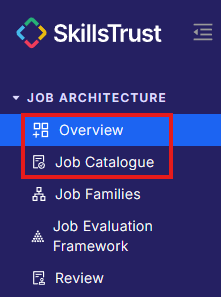
- Select either Overview or Job Catalogue under the Job Architecture section from the left-hand menu.
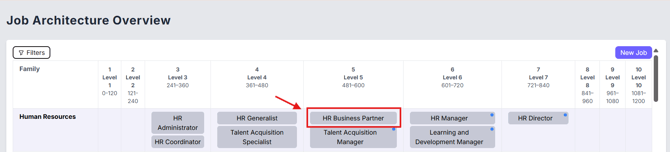
- Click on the job to open its job profile.
- Click the Reviews tab, next to Profile and Activity at the top of the page.
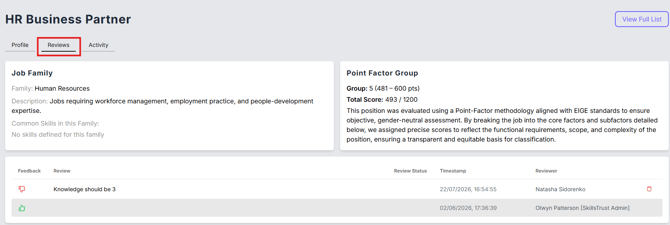
- Review the feedback table at the bottom of the page. Each row shows:
- Feedback: a thumbs-up (Agree) or thumbs-down (Disagree) icon.
- Review: the reviewer's comment.
- Review Status: if applicable (only Outdated)
- Timestamp: the date and time the review was added.
- Reviewer: the name of the person who gave the feedback.
- To remove your review, click the Bin icon at the end of its row.

Note: You can only remove your own reviews.
Still need help?
If this article did not answer your question, email our support team at support@skillstrust.org and we will be happy to help.
Our support hours are Monday to Friday, 9am to 5:30pm GMT, excluding public holidays in the Republic of Ireland.