
You can review your most extreme pay outliers to check whether a reported pay gap reflects a genuine pay difference or a data quality issue that needs correcting.
Solution overview
To review outliers, navigate to the People tab under Pay, then use the Filter outliers control to show low and high outliers and sort by compa ratio.
Step 1: Review the outliers
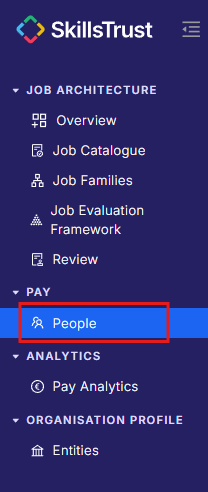
- Select the People tab under the Pay section from the left-hand menu.
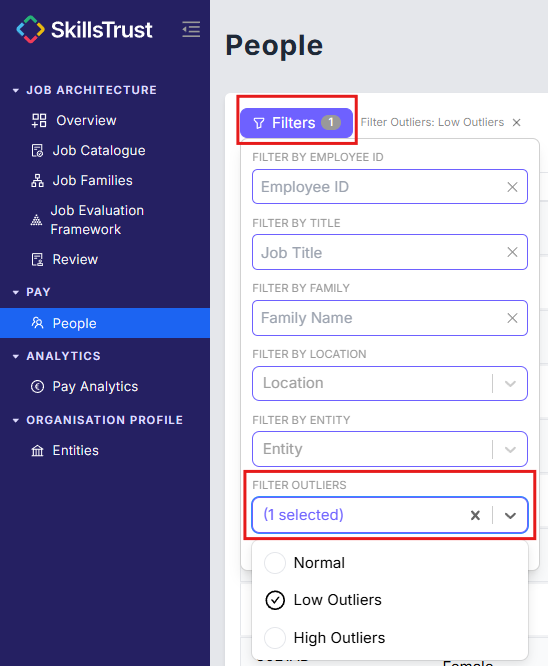
- Open Filters and set Filter outliers to Low Outliers.
- Sort the Compa Ratio column lowest first.
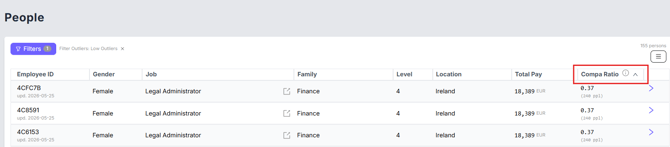
- Start with the 10 lowest, as a manageable first pass. You can work through more once you have dealt with the most extreme cases.
- Change Filter outliers to High Outliers.
- Sort the Compa Ratio column highest first, and review the first 10 records.
Compa ratio and outlier status
The compa ratio is a measure of how an employee's pay compares to the median pay for their job category.
-
1.0 - paid at the median
-
Below 1.0 - paid below the median
-
Above 1.0 - paid above the median
An Outlier is defined as any employee with a compa ratio less than 0.8 (low outlier) or greater than 1.2 (high outlier).
Step 2: Add notes to employees' records
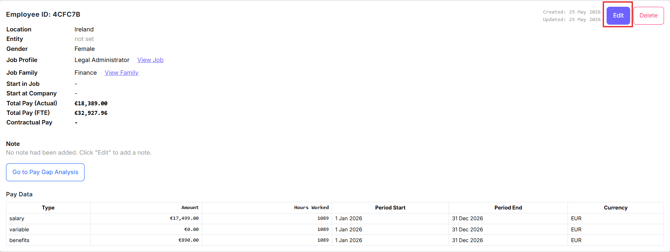
- To open an employee's record, click the arrow on the right of their row.

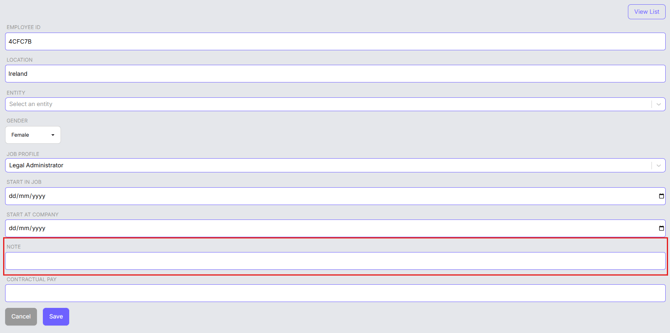
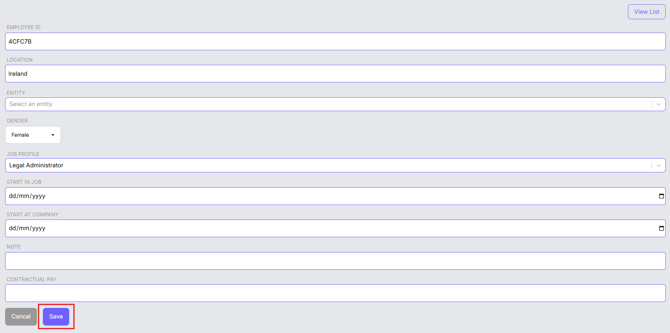
- To add a note, click Edit in the top right, type your note, then click Save.
Still need help?
If this article did not answer your question, email our support team at support@skillstrust.org and we will be happy to help.
Our support hours are Monday to Friday, 9am to 5:30pm GMT, excluding public holidays in the Republic of Ireland.